
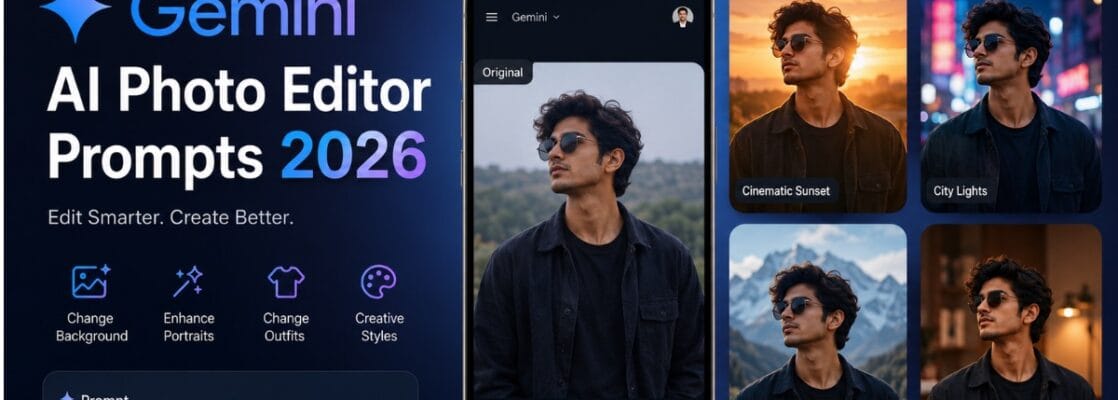
writer by Sanjoy gorh
edit a photo with Gemini in 2026, the biggest difference often comes down to how you write your prompt. Gemini can edit uploaded images, change backgrounds, modify objects, apply styles, combine multiple photos and make further edits through conversational instructions. Google’s current Gemini documentation says users can upload an image and describe the changes they want directly in the prompt.
This guide explains how to use the Gemini AI photo editor, how to write effective prompts and gives you ready-to-copy ideas for portraits, selfies, fashion, backgrounds, cinematic photos, social media images and more.
What Is the Gemini AI Photo Editor?
The Gemini AI photo editor lets you use natural-language instructions to change an image instead of manually adjusting every editing tool.For example, instead of opening several editing menus, you can upload a photo and tell Gemini:
“Change the background to a modern city street at night while keeping my face, hairstyle and clothes unchanged.”
Gemini’s image tools can handle both generated images and uploaded photos. Google also says the system can support multiple reference images and conversational, multi-step editing. This makes prompt writing particularly important.A vague instruction such as “make this photo better” gives the AI very little information.A more specific instruction tells it what to change, what to preserve and what visual result you want.
How to Prompt Gemini AI for Photo Editing
A good Gemini photo-editing prompt should describe the subject, requested change, visual style and important elements that must remain unchanged.
A simple formula is:
Action + Subject + Change + Style + Background + Preservation instructions
For example:
“Edit this portrait by changing the background to a luxury hotel lobby. Keep my face, facial features, hairstyle and clothing unchanged. Use realistic lighting, natural skin texture and professional photography.”
Google’s own prompting guidance recommends describing the subject, composition, action, location, style and editing instructions rather than relying on very short prompts.
A simple prompt formula
Use this structure:
“Edit this image + [what to change] + [how it should look] + [what to preserve].”
For example:
“Edit this photo by replacing the background with a beautiful mountain landscape. Keep the person exactly the same. Match the lighting and shadows so the result looks natural and photorealistic.”
This is usually more useful than simply writing:
“Make it beautiful.”
Best Gemini AI Photo Editor Prompts for 2026
Below are practical prompts you can copy and customize.
1. Professional Portrait Prompt
“Turn this photo into a professional portrait. Improve the lighting and background while keeping my face, facial features, hairstyle and clothing unchanged. Use natural skin texture, realistic shadows and a clean professional photography style.”
This works well for profile pictures, professional pages and social media.
2. Cinematic Portrait Prompt
“Edit this photo into a cinematic portrait with dramatic but realistic lighting. Add a soft depth-of-field background, subtle contrast and natural skin texture. Keep my face and identity unchanged.”
3. Instagram-Style Photo Prompt
“Enhance this photo for Instagram. Improve composition, lighting and colors while keeping my face and clothing natural. Create a polished modern photography look without making the image look artificial.”
4. Luxury Photoshoot Prompt
“Transform this portrait into a luxury fashion photoshoot. Place me in an elegant premium setting with sophisticated lighting and realistic shadows. Keep my facial features, body proportions and identity unchanged.”
5. Background Change Prompt
“Replace the current background with a beautiful modern city at sunset. Keep the person exactly the same and make the lighting on the subject match the new environment naturally.”
Background replacement is one of the practical editing uses Google highlights for Gemini’s image-editing capabilities.
6. Travel Photo Prompt
“Edit this photo so it looks like I am standing at a beautiful European travel destination. Keep my face, hairstyle and clothes unchanged. Make the environment, perspective, lighting and shadows look completely realistic.”
7. Traditional Outfit Prompt
“Change my outfit to an elegant traditional Indian outfit while keeping my face, hairstyle, body proportions and identity unchanged. Use realistic fabric texture, natural folds and lighting.”
8. Modern Fashion Prompt
“Change my clothing to a stylish modern fashion outfit suitable for a professional photoshoot. Keep my face and body proportions unchanged. Use realistic fabric, natural shadows and premium editorial photography.”
9. Black-and-White Portrait
“Convert this portrait into a sophisticated black-and-white photograph. Preserve my facial details and natural skin texture. Use professional studio lighting, strong composition and subtle film grain.”
10. Old Photo Restoration Prompt
“Restore this old photograph. Remove scratches, dust and visible damage while preserving the original person’s facial features, expression and identity. Improve clarity and contrast without making the image look artificially generated.”
Trending Gemini Photo Prompt Ideas
Search interest around Gemini photo prompts is increasingly focused on specific visual transformations, rather than generic “AI photo” instructions.
Current examples across the web include cinematic portraits, monsoon-themed images, fashion transformations and realistic scene changes.
Try these concepts:
Monsoon Portrait
“Edit my photo into a cinematic Indian monsoon portrait. Add gentle rain, wet streets, warm shop lights and realistic reflections. Keep my face and identity unchanged.”
Rainy Window Portrait
“Turn this into a cozy rainy-day portrait with raindrops on the window, soft natural light and warm cinematic tones. Keep my facial features unchanged.”
Magazine Cover Style
“Transform this portrait into a high-end fashion editorial photograph. Use professional studio lighting, elegant composition and realistic skin texture while preserving my identity.”
Film Scene
“Place me naturally into a cinematic movie scene at night. Match the lighting, perspective, shadows and color grading while keeping my face and identity unchanged.”
How to Get Better Results From Gemini Prompts
The quality of the prompt matters, but specificity does not mean writing an enormous paragraph.Focus on the details that actually matter.
1. Say what should change
Instead of:
“Edit my photo.”
Try:
“Replace the background with a sunset beach.”
2. Say what must stay the same
For a portrait, include:
- Face
- Facial features
- Hairstyle
- Skin texture
- Body proportions
- Clothing, if required
- Identity
For example:
“Keep my face and facial features unchanged.”
This is especially useful when editing personal photographs because Google’s image-editing updates have specifically focused on maintaining consistent likeness.
3. Describe the visual style
You can use terms such as:
- Photorealistic
- Cinematic
- Editorial
- Studio photography
- Natural lighting
- Vintage
- Black and white
- Watercolor
- Cartoon
- Minimalist
Google itself recommends describing the desired image style in prompts.
4. Describe lighting
Lighting can dramatically change the result.
Try:
“Use soft golden-hour lighting.”
or:
“Use realistic studio lighting with subtle shadows.”
5. Edit in multiple steps
You don’t necessarily need to write one giant prompt.
Gemini supports conversational editing, so you can make an initial change and then request another modification.
For example:
First prompt:
“Replace the background with a mountain landscape.”
Second prompt:
“Make the lighting warmer and more natural.”
Third prompt:
“Reduce the background blur slightly while keeping my face sharp.”
This approach can give you more control over the final image.
How to Edit a Photo in Gemini AI
The current Gemini workflow is relatively straightforward.
Step 1: Open Gemini
Go to the Gemini app or Gemini web experience.
Step 2: Upload your photo
Select the image you want to edit.
Step 3: Describe the change
Write a clear natural-language prompt.
For example:
“Remove the people in the background and replace the area with a realistic park.”
Step 4: Review the result
Check whether Gemini changed anything you wanted to preserve.
Step 5: Give a follow-up instruction
If something isn’t right, describe the correction.
For example:
“Keep my original face exactly as it was and make the background less blurred.”Google’s current instructions confirm that users can upload an image, enter a prompt and submit the request for editing.
Can Gemini Edit Multiple Photos?
Yes. Google’s current Gemini documentation says users can upload multiple images and ask Gemini to create a new image based on those references.
For example:
“Combine these two photos into one realistic family portrait. Keep each person’s facial features recognizable and use consistent lighting and perspective.”
This can be useful for:
- Family pictures
- Couple photos
- Product compositions
- Creative portraits
- Before-and-after concepts
- Social media graphics
What Is the Best AI Prompt for Photo Editing?
There isn’t one universal “best” prompt because the correct prompt depends on the result you want.However, a strong general-purpose template is:
“Edit this photo by [specific change]. Keep [important elements] unchanged. Use [visual style], [lighting] and [background details]. Make the final result realistic, natural and professionally composed.”
For example:
“Edit this photo by replacing the background with a modern rooftop at sunset. Keep my face, hairstyle, clothing and body proportions unchanged. Use warm cinematic lighting, realistic shadows and natural skin texture. Make the final image look like professional photography.”
The important part is not the number of words. It is the specificity of the instructions.
Common Gemini Photo Prompt Mistakes
Using extremely vague instructions
“Make this photo amazing” doesn’t tell Gemini what you actually want.
Changing too many things at once
If you request a new outfit, location, lighting, pose, hairstyle and facial expression simultaneously, the result may not match your original image closely.
Forgetting preservation instructions
When editing a personal portrait, explicitly state which characteristics should remain unchanged.
Using unrealistic descriptions
If you want a realistic image, tell Gemini to use natural lighting, realistic shadows, accurate proportions and natural skin texture.
Expecting every edit to be perfect
AI image editing can still produce unwanted changes. Review the result carefully, particularly faces, hands, text and small objects.
Gemini AI Photo Editing Free?
Availability and limits can vary by country, account type, model and current Google product rules.
Google’s current Gemini documentation notes that Nano Banana 2 is used for image generation and editing, while Nano Banana Pro is available to paid subscribers for additional regeneration capabilities.
Therefore, don’t assume that every Gemini image feature will have identical limits for every user.
If you are in India, availability can also differ between Gemini and other Google products. For example, Google announced in January 2026 that conversational AI photo editing in Google Photos was rolling out in India, including support for several Indian languages and compatible Android devices.
Gemini Photo Editing vs Traditional Editing
| Feature | Gemini AI Editing | Traditional Editing |
| Background changes | Prompt-based | Manual/automated tools |
| Outfit changes | AI prompt | Usually manual |
| Object removal | Prompt-based | Editing tools |
| Style changes | Natural language | Filters/effects |
| Learning curve | Low | Often higher |
| Fine manual control | Limited | Usually stronger |
| Multiple-image composition | AI-assisted | Manual or semi-automated |
Gemini is particularly useful when you know what result you want but don’t want to manually perform every editing step.
7 Quick Gemini Prompts You Can Copy
Portrait
“Make this a professional studio portrait while keeping my identity and facial features unchanged.”
Background
“Replace the background with a realistic mountain landscape and match the lighting naturally.”
Fashion
“Change my outfit to a premium modern fashion look while preserving my face and body proportions.”
Cinematic
“Give this photo a cinematic movie look with realistic lighting, depth and natural colors.”
Travel
“Transform the background into a beautiful travel destination while keeping me unchanged.”
Vintage
“Give this image a realistic vintage film photography look with subtle grain and warm tones.”
Social Media
“Optimize this photo for a polished social media portrait with natural lighting and realistic skin texture.”
Conclusion
The best way to use the Gemini AI photo editor in 2026 is to stop thinking of prompts as simple commands and start treating them as editing instructions.Tell Gemini what to change, what to preserve, what style you want and how the final image should look. Start with a clear prompt, review the result and use follow-up instructions for smaller corrections.
For personal portraits, the most important instruction is usually to preserve the person’s identity and facial features. For creative images, style, lighting, composition and background details become more important.
Gemini’s current image tools make this process increasingly conversational, so you don’t need to know professional photo-editing software to experiment with advanced transformations.